Click on the button My Work
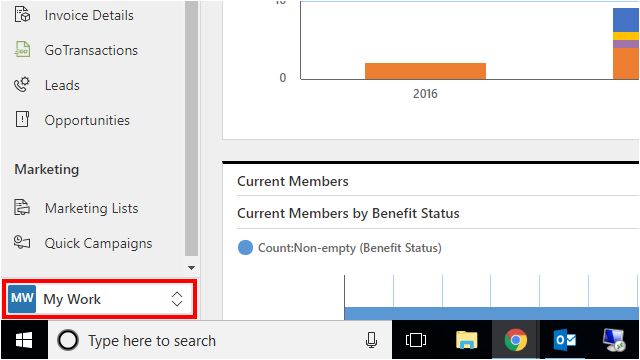

Click on the button My Work
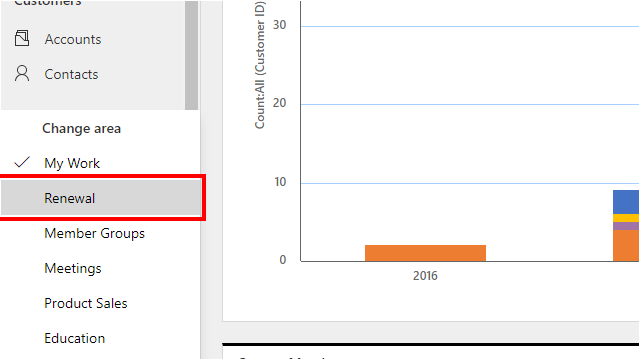
Click on the item Renewal
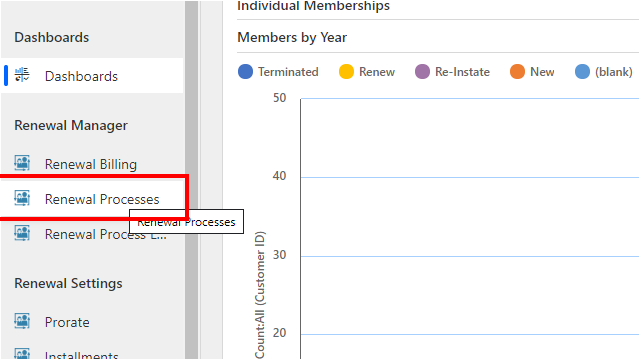
Click on the item Renewal Processes
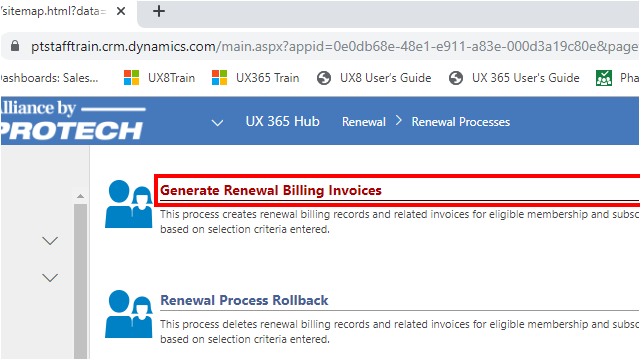
Click on Generate Renewal Billing Invoices
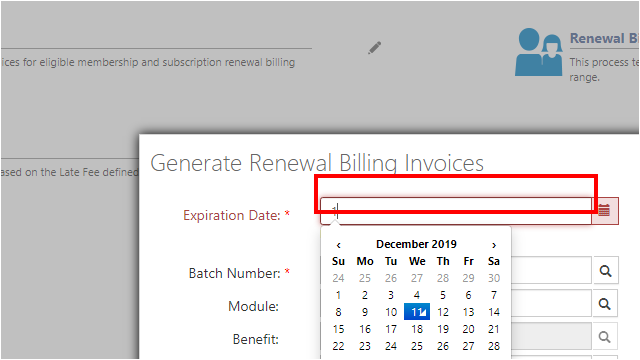
Click on the input field Expiration Date
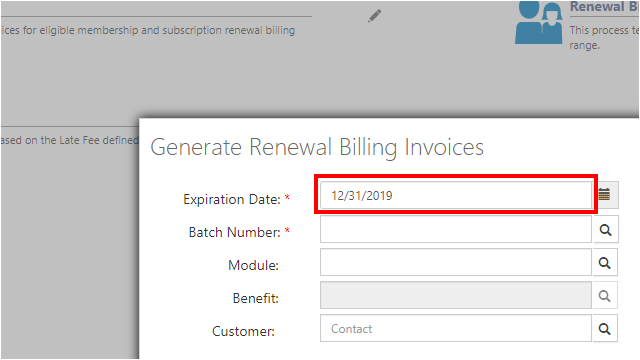
Enter or select the Expiration Date of the Renewal Billing records to be renewed. This will always be the last day of the month
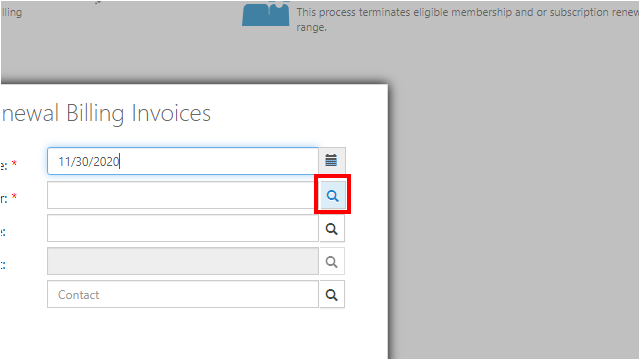
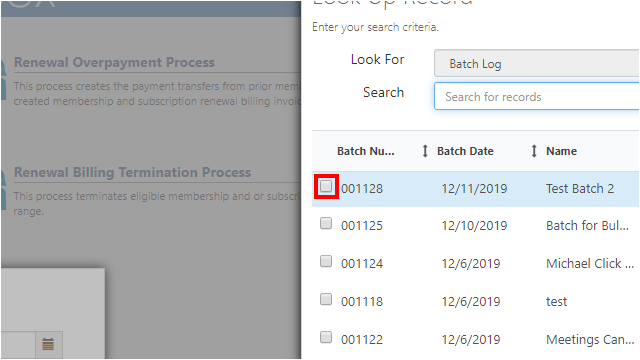
Click on Lookup button for Batch Number
Click on the checkbox for the desired Batch
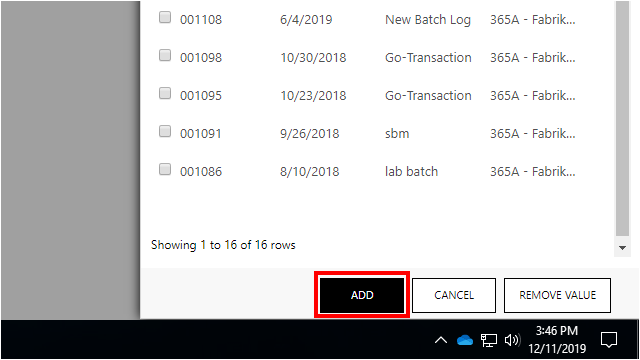
Click on the button ADD
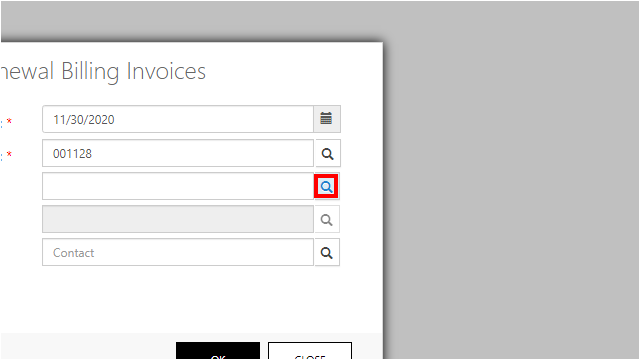
Click on Lookup button for Module
Click on the checkbox for the Membership module
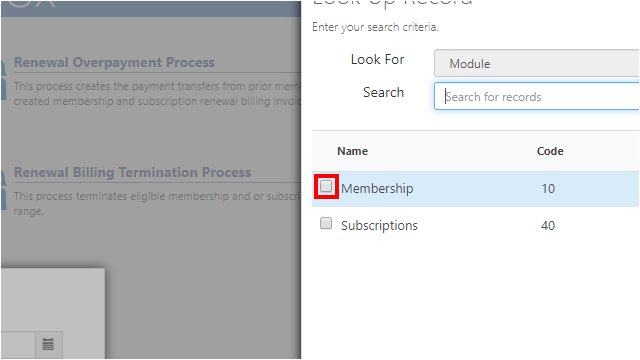
If you do not select a module, you will be able to select benefits from both Membership and Subscription modules.
Click on the button ADD
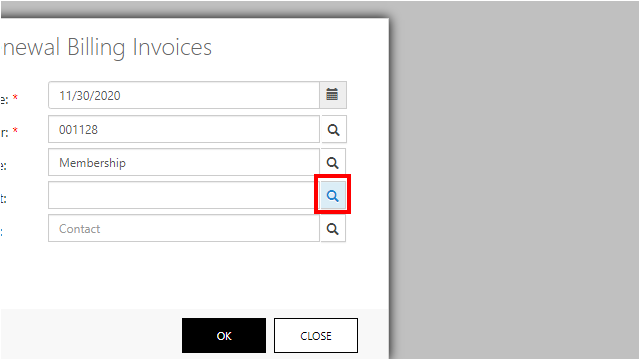
Click on Lookup button for Benefit
Click on the checkbox for the desired Benefit
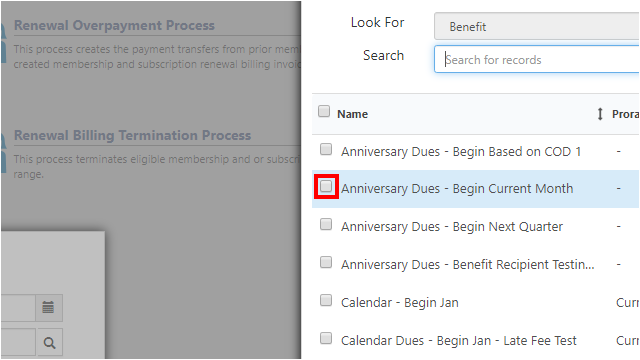
If you do not select a benefit, the system will run the renewal process on all renewal benefits within the selected module. If no module was selected, the system will run the renewal process on all eligible membership and subscription renewal billing records for the selected Expiration Date.
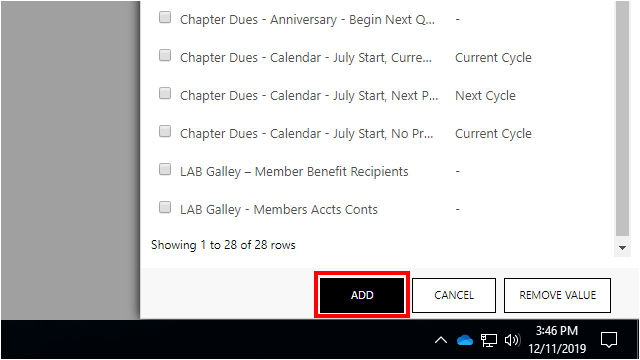
Click on the button ADD
You can use the Customer field to narrow down your search by Contact or Account if you are generating a renewal invoice for a single customer.
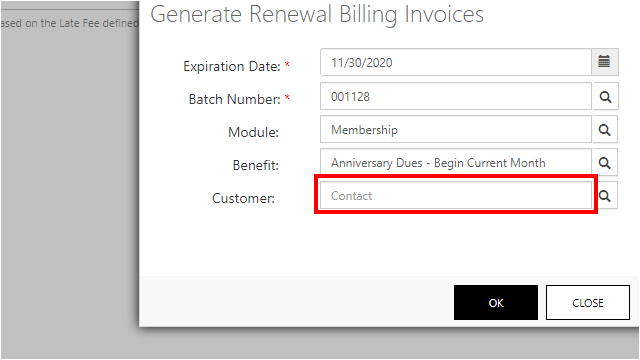
Click on the button OK
A message will appear displaying the number of renewal billing records found that meet the search criteria you entered and meet the conditions for eligible renewal billing records described earlier. Verify that this number matches the number of records shown on the UX Membership Dues Renewal Edit Report for Accounts and Contacts.
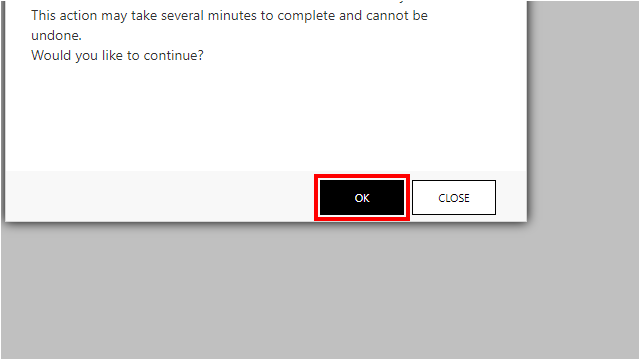
Please note that this process may take several minutes to complete if there is a large number of invoices to be generated. After you click the OK button, allow the system several minutes to generate the invoices. Do not attempt to re-run the process.
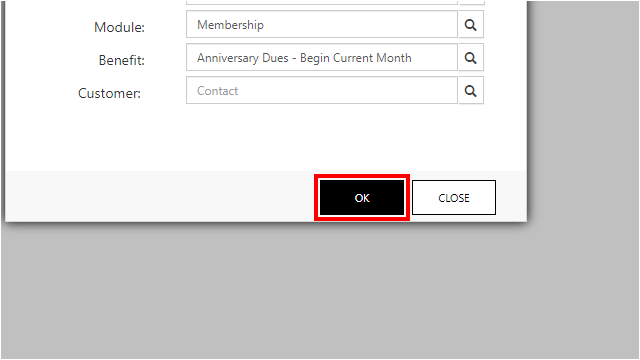
Click on the button OK to run the renewals process